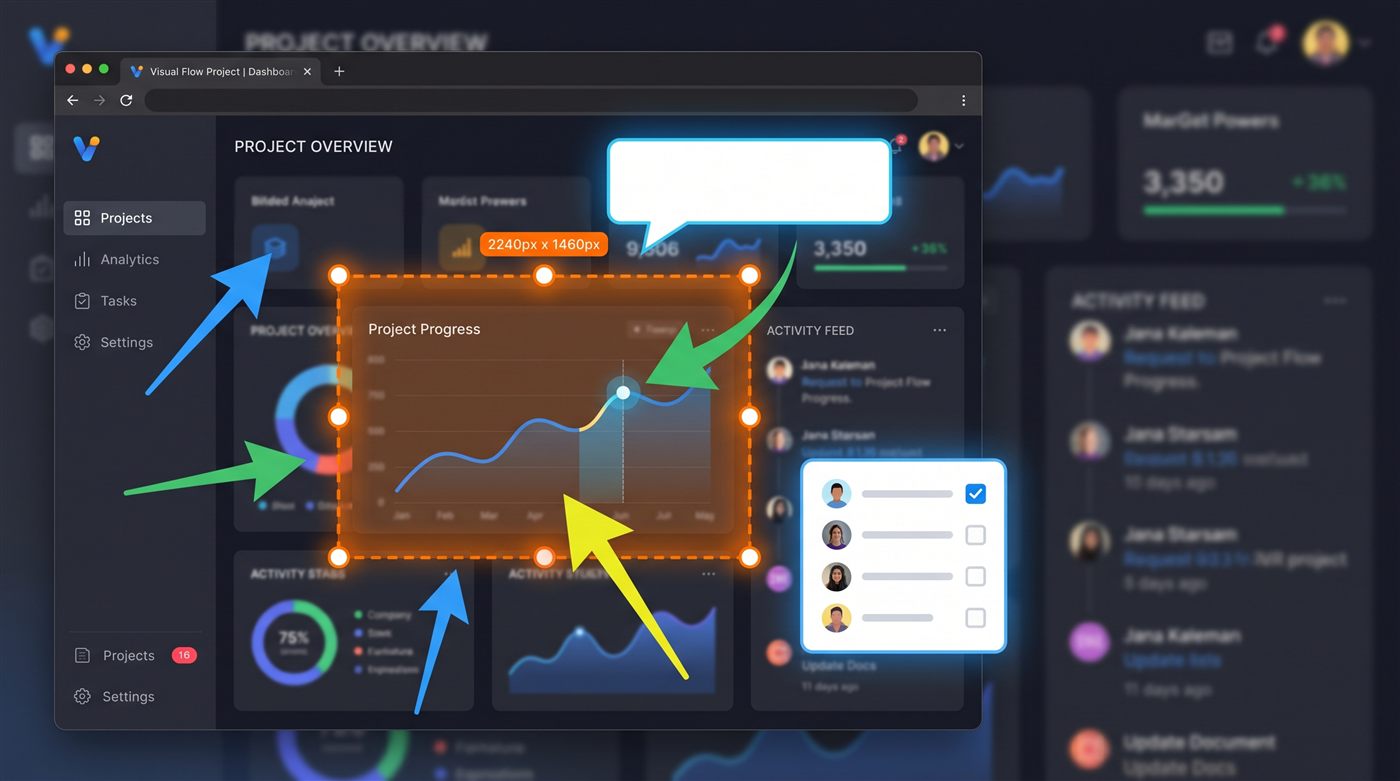
Everything you need to explain a screen
One tool from capture to “here, look at this” — without a heavyweight editor.
Instant region capture
Press PrintScreen, drag, done. Hover and Screen Slinger highlights the window, panel or table under the cursor — click to capture exactly that. A timer for menus that close, the cursor included when it matters.
Automatic scrolling capture
Pick the region and Screen Slinger scrolls it for you: stops at the bottom by itself, spots sticky headers so they appear only once, and stitches everything pixel-accurately into one tall image. Too tall? Cut out the middle and the halves join up.
Arrows, shapes & text
Clean annotations with full control of color, thickness and fill. Everything stays editable — move and restyle any time.
Real blur for privacy
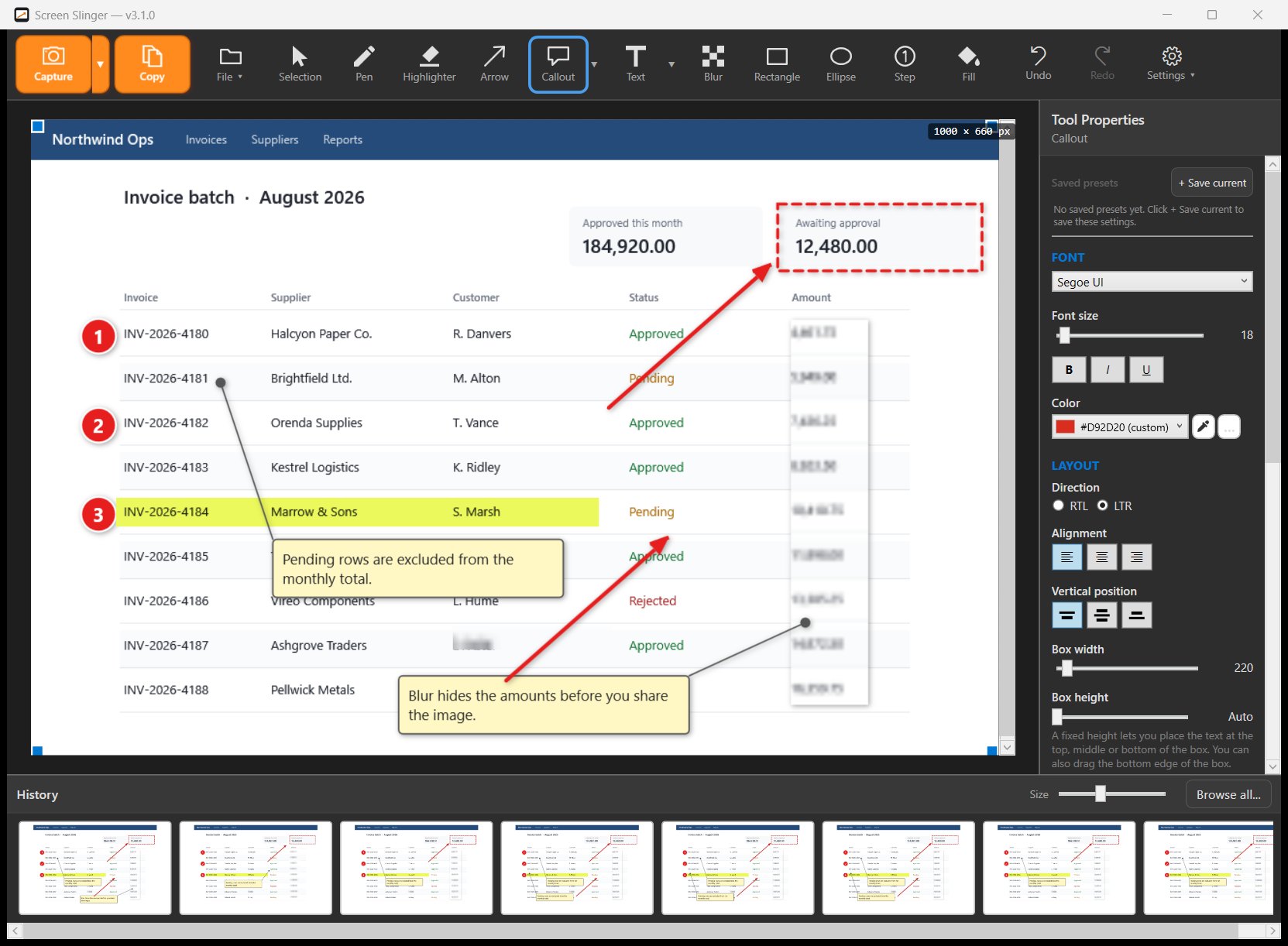
Hide names, emails and numbers with smooth blur, pixelation, or solid color — the exported pixels are replaced, not covered over. One click finds e-mails and long numbers for you, and saved hide-templates re-apply on every new capture.
Numbered steps & callouts
Turn any screenshot into a how-to: auto-numbered step markers and speech-bubble callouts with your text.
Spotlight, magnifier & stickers
Darken everything except the part that matters — rectangle, circle or cloud. Enlarge a small detail in a movable magnifier inset, or cover a face kindly with an emoji sticker.
Pin, pick & copy text
Pin a capture as a small always-on-top window while you work, sample any pixel's color, and copy the text out of an image with built-in OCR (uses the Windows engine and its language packs).
Background & frame
Give a screenshot a clean backdrop and frame before sending. Set your style once — every new capture arrives already dressed.
Your style, saved
Save tool presets — your arrow, your highlight color, your callout style — and apply them in one click.
Automatic history
Every capture is saved and searchable. Copy several screenshots at once and paste them one by one with Win+V — or merge a selection into one image, with each capture still its own movable object.
Undo that survives
Unlimited-feeling undo that's saved with the file — close the app, reopen tomorrow, and keep pressing Ctrl+Z.
Speaks your language
English, French, German and Hebrew (with full right-to-left support) — detected automatically.
100% local. Zero cloud.
Your screenshots never leave your computer. No account, no upload, no telemetry. That's not a promise buried in a policy — it's how Screen Slinger is built.
Read our guide to redacting a screenshot safely — including why you should never pixelate text, in any tool.
Guides and comparisons: hiding sensitive information in a screenshot · making numbered-step screenshots for a tutorial · capturing a long scrolling page
The real thing
The real Screen Slinger editor, unretouched. Numbered steps, arrows, callouts and a frame on a captured screen, with every object still editable, and your full capture history one click away.
Watch Screen Slinger in action — capture, annotate, done.
Simple pricing
Start free — no payment details, no account. Pay once, and only if you decide it's worth it.
- Every feature unlocked — nothing held back
- No credit card, no account, no sign-up
- Download and start capturing in a minute
- After 30 days the app becomes view-only
- Lifetime license — pay once, use forever
- All features, plus any updates released for version 3
- Instant download, activated with a license key
- Pay by credit card or with PayPal
Secure checkout by Lemon Squeezy, a trusted payment platform used by thousands of software companies. They handle payment, tax and your invoice — card details never reach us. You can pay by credit card or with PayPal. You can read more about them on their own site.
Questions & answers
What are the system requirements?
Windows 10 or Windows 11, 64-bit. No extra runtimes needed. Use the signed installer, or the portable executable if you would rather not install anything.
Do my screenshots get uploaded anywhere?
Never. Screenshots are saved to a folder you choose on your own disk, and that's the only place they exist. The app goes online for one thing only: checking your license key when you activate it.
What happens when the 30-day free period ends?
The app switches to view-only. You can still open Screen Slinger and look through everything you captured, and your files stay on your disk exactly where they were — nothing is deleted. Inside Screen Slinger, capturing, editing, saving, exporting and copying to the clipboard all require a license.
Is it really pay-once? No subscription?
Yes. One payment, lifetime license, and updates released for version 3 are included. A future major version, if there ever is one, is not included.
What's the refund policy?
Payment is handled by Lemon Squeezy, the seller of record, and any refund request is decided under their policy. That is exactly why the trial exists: 30 days, every feature unlocked, so you can be sure before you pay.
Can I move my license to a new computer?
Yes — deactivate it in the app (License window) and activate on the new machine with the same key.
Wondering how it stacks up against Snagit, ShareX, Greenshot, Lightshot or PicPick? Read the honest comparison.