"The button is in the wrong place" is a hard sentence for a model to act on. Which button? Wrong compared to what? A screenshot answers both questions at once, and a screenshot with an arrow on the button answers them without the model having to guess which of forty elements you mean.
Assistants that accept images can read layout, text and state from a screenshot. What they cannot do is read your mind about which part of it matters. That is the whole job of the marks you add.
The short version
- Capture only the area where the problem is.
- Mark it: an arrow or a frame on the element, numbered steps for a sequence.
- Hide keys, tokens and customer data with a solid fill.
- Copy the finished image, or drag it out.
- Paste it into the chat with Ctrl+V and one sentence: what you expected, and what you see.
The rest of this page goes through each step, first as advice that works with any tool, then how each step is done in Screen Slinger.
1. Capture the area, not the monitor
A full-screen capture of a large display is mostly irrelevant pixels: taskbar, other windows, the parts of your app that are fine. Select the panel, dialog or row where the problem is, plus enough of the surroundings to show where it sits — usually the panel's heading or the window's title bar.
In Screen Slinger: press Print Screen (the default capture key), and the screen dims. Drag over the area, or click the item under the mouse when its dashed frame fits. The capture opens in the editor and, with the default settings, is also copied to the clipboard.
2. Mark what you mean
One mark per thing you are talking about. More marks than that and the model, like a person, starts to wonder which one is the point.
- An arrow for "this element".
- A frame for "this area" — a misaligned group, a list that overflows, a gap that should not be there.
- Numbered steps for a sequence: "click 1, then 2, and 3 shows the wrong value". This is the clearest way to describe a reproduction path in one image.
- A short text label only where the mark alone is ambiguous, such as "should be 12 px, is 4 px".
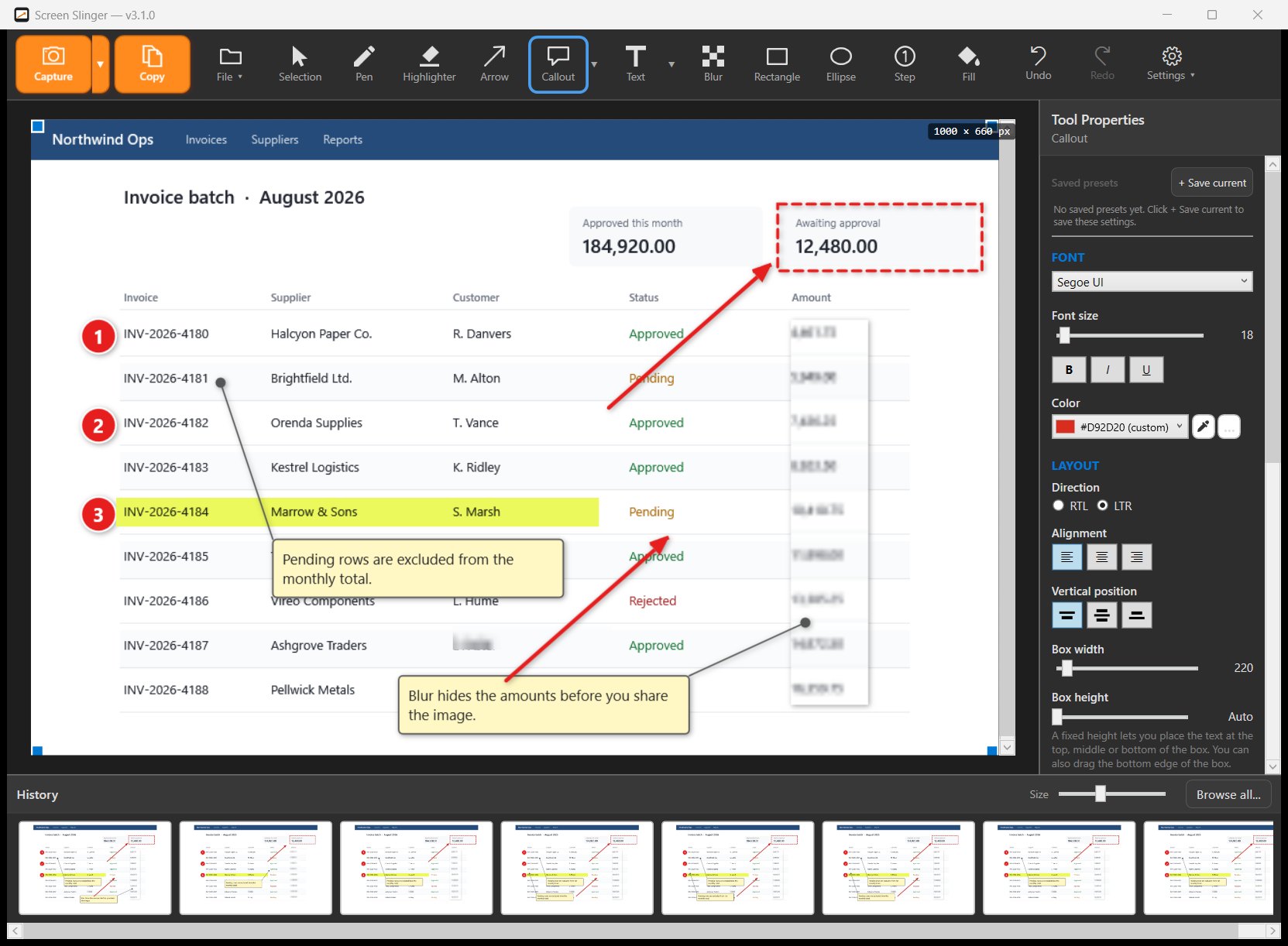
In Screen Slinger: the Step tool places 1, 2, 3 in order, one number per click. With the Arrow tool, drag an arrow to an item in the screenshot and the tip stops at the item's edge; with the Rectangle tool, drag a frame around an item and the frame snaps to fit it. Hovering shows where it will land first, and holding Alt while drawing turns the snapping off.
Text the model can quote beats text it has to read. For an error message or a stack trace, paste the text too, not only the picture. On Screen Slinger's capture screen, double-clicking an area that has text reads the text and opens it in a window where you can correct and copy it, without taking a capture. The text is read by the text recognition built into Windows, on your computer; which languages it reads depends on the Windows language packs installed.
3. Hide secrets before they leave your machine
Developer screenshots are full of things that should not be pasted anywhere: API keys in a config panel, tokens in a terminal, a customer's e-mail address in test data, an internal hostname in the address bar. Treat the image the same way you would treat the text: if you would not paste it, cover it.
Cover short text with a solid fill. Pixelation and soft blur can look safe and still leave enough of the original for a short, predictable value — a six-digit code, the last four digits of a card — to be reconstructed. The full reasoning is in our guide on how to blur sensitive information in a screenshot.
In Screen Slinger: the Blur tool's default style is a solid fill. Drag it over a detail, such as a phone number, and it snaps to it; the app then offers to hide the same detail in other places in the screenshot. After a capture, the app can also point out details that look sensitive, such as e-mail addresses and phone numbers, and offer to hide them and copy again. It is a helper, not a guarantee: check the image yourself before you send it.
4. Copy, or drag it out
Two ways to get the finished image into the chat:
- Copy: Ctrl+C in the editor copies the whole image with your marks on it.
- Drag: "Drag out", in the status bar at the bottom of the editor, drags the finished image straight into a chat, an e-mail, a ticket or a document.
When the screenshot needs no marks at all, skip the editor: after pressing Print Screen, select the area as usual but hold Ctrl as you release the mouse. The capture goes straight to the clipboard and the editor does not open, so you stay in the window you are about to paste into.
5. Paste it with one sentence of context
Press Ctrl+V in the assistant's message box. Claude, ChatGPT and several coding assistants accept images pasted or dropped into the chat; check that yours does, and that the model you have selected reads images.
Then write the sentence the image cannot say on its own:
- what you expected — "the total should line up with the column above";
- what you see instead — "it is pushed right by the scrollbar";
- what you already tried, if anything.
The image shows where; the sentence says what is wrong with it. Either one alone leaves the model guessing.
Before and after: the same area twice
After the model suggests a fix, the fastest way to check it — and to show it what changed — is a second capture of exactly the same area. Two images of the same size, side by side in the chat, make a one-pixel shift easy to see.
In Screen Slinger: press Print Screen, and when the screen dims, press Print Screen once more. The same area as your last capture is selected.
What this is not
Screen Slinger has no connection to Claude, ChatGPT, Cursor, Copilot or any other AI service. It does not upload anything and does not need an account. It produces an image on your clipboard, or one you drag out, and you paste it into whichever assistant you use. That also means it works the same with whichever assistant you switch to next.
Questions
How do I send a screenshot to Claude or ChatGPT on Windows?
Copy the screenshot to the clipboard and press Ctrl+V in the chat's message box, or drag the image file into the chat window. Mark the relevant part first, so the model knows where to look.
Is a screenshot or the error text better?
Usually both. The screenshot shows layout, state and location; the text gives the exact message, which the model can quote and search for. Text read from an image can contain recognition mistakes, so for long messages and stack traces, paste the text itself.
Will the AI see my whole screen?
Only what you capture and paste. Screen Slinger sends nothing anywhere by itself; the image reaches the assistant only when you paste or drop it there.
Written by the team behind Screen Slinger, a Windows screenshot and annotation tool. The method above works with any screenshot tool that can draw an arrow and a solid box. Related guides: numbered-step screenshots, hiding sensitive information, and screenshots for software documentation and bug reports.